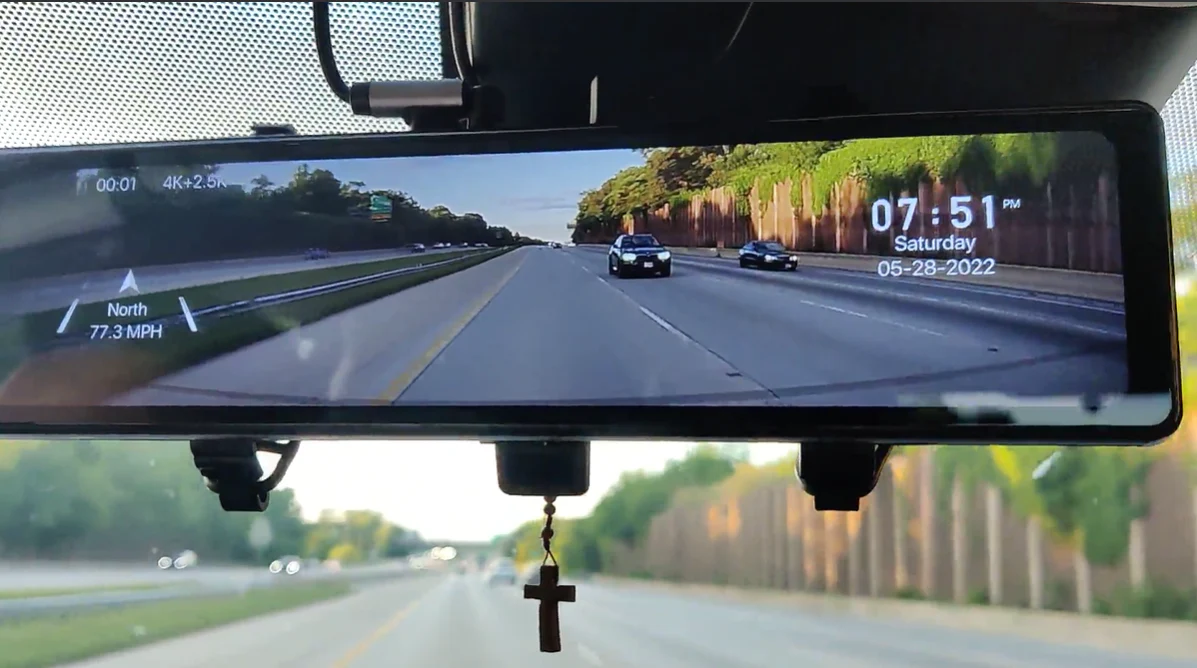
Dash cams and car cameras have become an essential part of modern driving. They help capture accidents, record scenic drives, and provide evidence when something unexpected happens. However, recording video is only useful if you know how to play it back. Many drivers install a car camera but are unsure how to view, save, or share the footage. Learning how to playback a car camera is simple once you understand the available methods and tools.
Understanding Where Your Videos Are Stored
Most car cameras save video files on a memory card, usually a microSD card inside the device. As the camera records, it stores clips in short segments. Older files are overwritten when the card is full, unless they are locked or protected. This is known as loop recording. When an incident happens, the camera’s built in sensor locks that file so it does not get deleted.
To playback your footage, you need to access these stored files. There are several ways to do this depending on your dash cam model.
Playback Using The Dash Cam Screen
Many modern car cameras have a built in screen. This is the easiest way to review footage while still in your vehicle. To use this method, turn on the camera or start your car so the device has power. Use the menu or playback button to enter video mode. From there, you can scroll through recorded clips and select the one you want to watch.
You can pause, fast forward, or rewind the video using the camera controls. This method is useful if you want to quickly check what happened after an incident. However, the small screen may not show fine details clearly.
Playback Using A Smartphone App
Many newer dash cams connect to smartphones through Wi Fi or Bluetooth. You install the camera’s companion app on your phone and connect it to the device. Once connected, you can view, download, and manage recordings directly from your phone.
This method gives you a larger screen and better controls. You can zoom in, save clips to your phone, or share them easily. Smartphone playback is popular because it is fast and convenient, especially when you are on the move.
Playback Using A Computer
For the clearest view, using a computer is often the best option. To do this, remove the memory card from the dash cam and insert it into a card reader on your computer. Open the folder where the videos are stored and double click the file you want to watch.
You can use any standard video player to watch the clips. On a larger screen, you will be able to see details such as licence plates and road signs more clearly. This method is also ideal for saving or backing up important footage.
Using The Camera’s Own Software
Some car camera brands provide special software for viewing videos. This software can show GPS data, speed, and map locations alongside the video. If your dash cam supports this feature, you can download the software from the brand’s website and use it on your computer.
This adds extra information to your playback, which can be useful for insurance or personal records.
Understanding Locked And Normal Files
When playing back footage, you may notice two types of files. Normal files are regular driving recordings that can be overwritten. Locked files are protected recordings that were saved during a sudden stop or impact. Knowing this difference helps you find important clips faster.
Locked files are usually stored in a separate folder, making them easier to locate when you need them.
How To Save Important Footage
If you find a video you want to keep, copy it to your phone or computer. This prevents it from being overwritten. Saving important clips is important for insurance claims, legal matters, or personal memories.
Troubleshooting Playback Issues
If a video does not play, the file may be damaged or the memory card may have issues. Using a good quality memory card and formatting it regularly helps prevent problems. If needed, special video repair tools can sometimes fix damaged files.
Making Playback Part Of Your Driving Routine
Knowing how to playback your car camera makes you a smarter and more prepared driver. Whether you are checking a close call or saving a special moment, having access to your footage gives you confidence and control.